

You can either change your password from your account settings or reset it if you are unable to log in.
Change your password (while logged in)
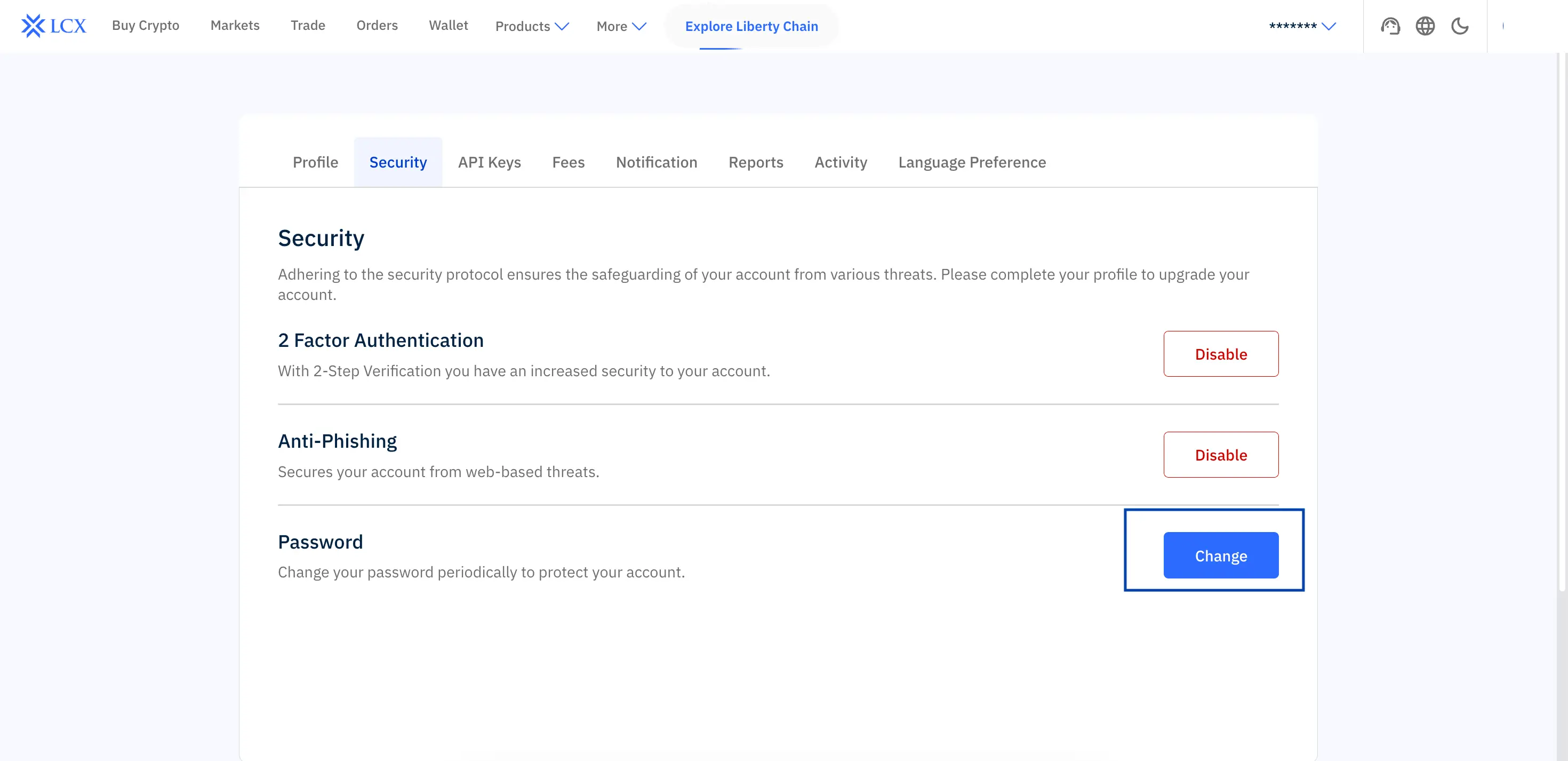
- Go to Settings in your account
- Open the Security section
- Click “Change” button next to Password
- Enter your current password and set a new one
- Complete verification (OTP and 2FA if enabled)
- Use your new password to login.
Reset your password (if you cannot log in)
- Go to the LCX login page
- Click Forgot Password
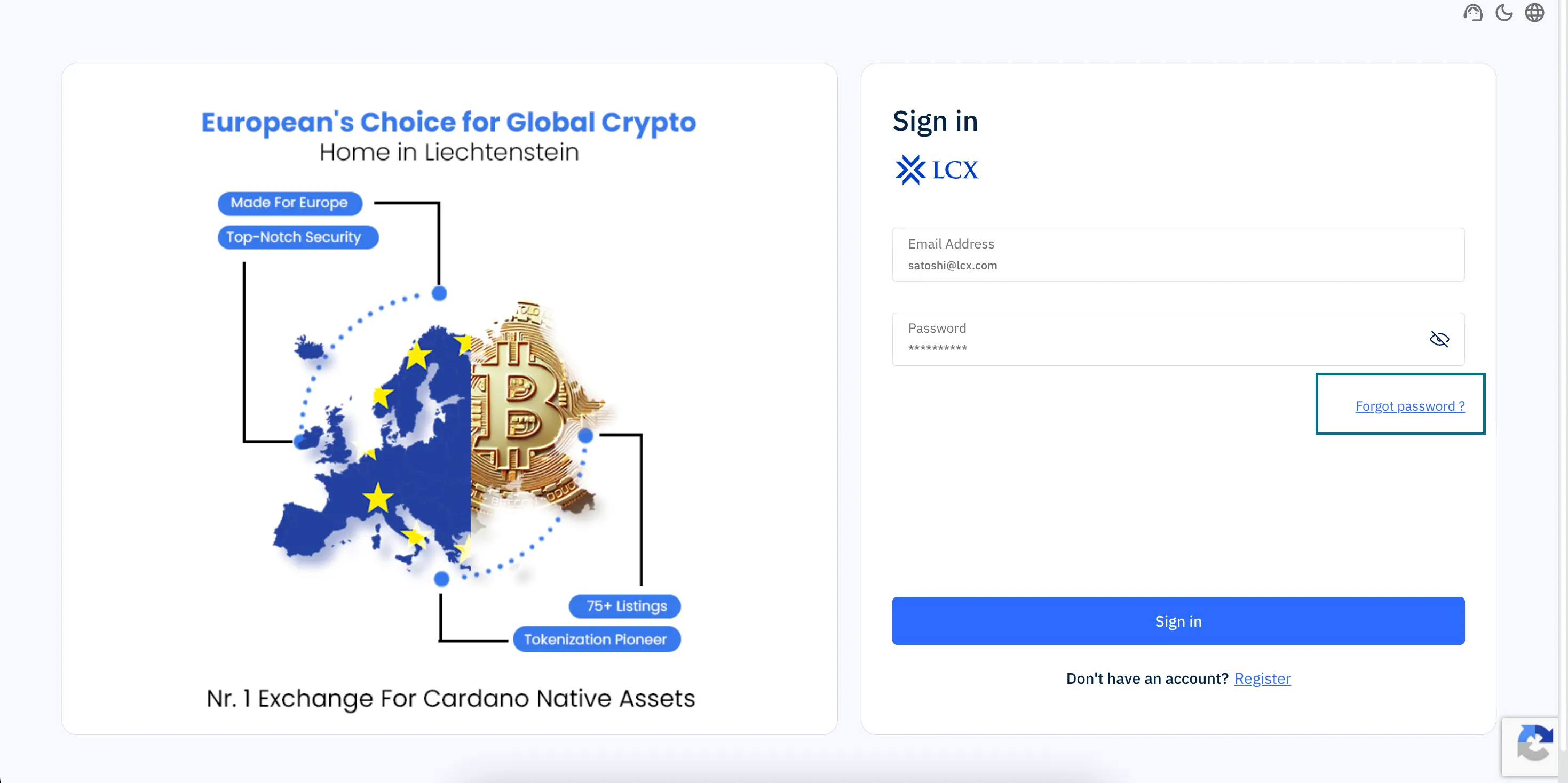
- Enter your registered email address
- Verify using the OTP sent to your email
- Set a new password and confirm
- Use your new password to login.
Next steps if you face issues
- Check your inbox (and spam or junk folder) for the OTP email
- Ensure the OTP and 2FA codes are correct and not expired
- Try requesting a new OTP if needed
- Avoid using VPNs or proxy networks
If you are still unable to update your password, contact LCX Support.